GAME TRANSLATE · HELP
How to Download a Patch
Our download buttons go through an ad link page before you reach the file. It takes about a minute and a few extra clicks. This guide shows exactly what to click, and what to ignore.
Sorry about the ads. Every patch on Game Translate is free, and translating a game takes months. Very few people donate, so the ad link is what keeps the site running. Removing it isn’t possible right now. Thank you for your patience, and for playing.
Before You Start
Only click Continue and Get Link
In the screenshots below, the right button is always marked with a red box. Everything else on these pages is advertising.
Ignore the big Download / Play buttons
Buttons like Download Now, Play Now, Direct Download Link or Download on the link pages are ads, not your patch. Don’t click them.
A new tab opened? Close it
Some clicks force a new tab or window to open. Just close it, go back to the original tab, and carry on from where you were.
Never install or allow anything
Our patches are small .zip files. If a page asks you to install an app, an extension or a “player”, or to allow notifications, it’s an ad. Close it.
The whole route looks like this:
Step 1: Pass the Cloudflare Check
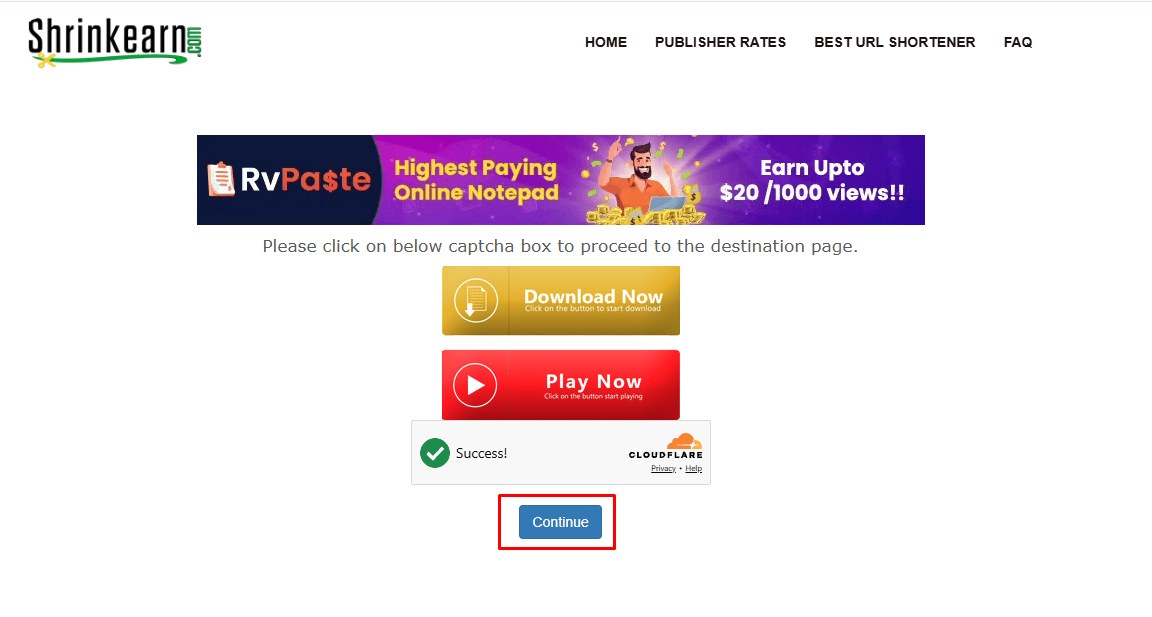
After you press a download button on a patch page, you land on the first link page.
- Wait until the Cloudflare box says Success!
- Click Continue. A new tab will be forced open: close it and go back to the original tab.
- Click Continue again. Another tab may open: close it too and return to the original tab.
Step 2: Click the Red Continue and Wait
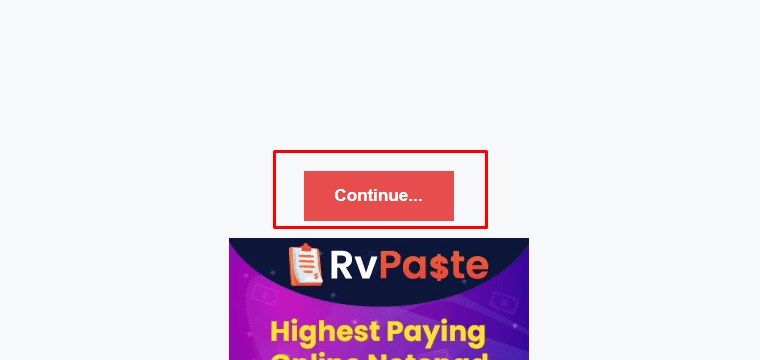
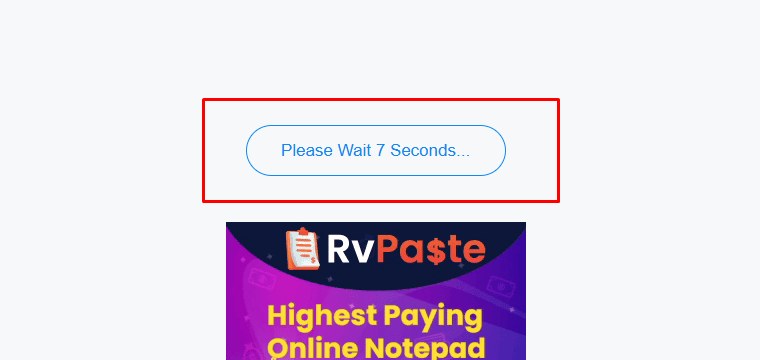
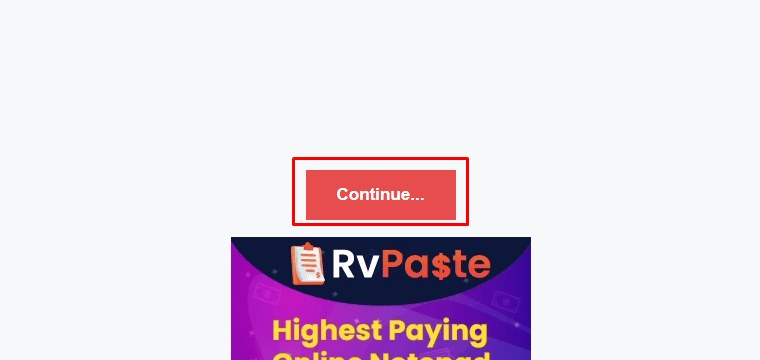
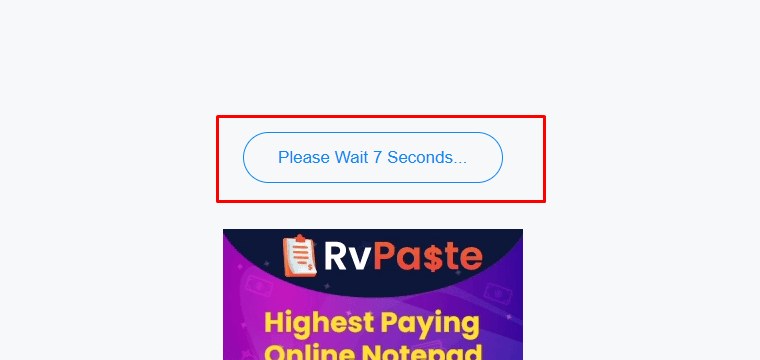
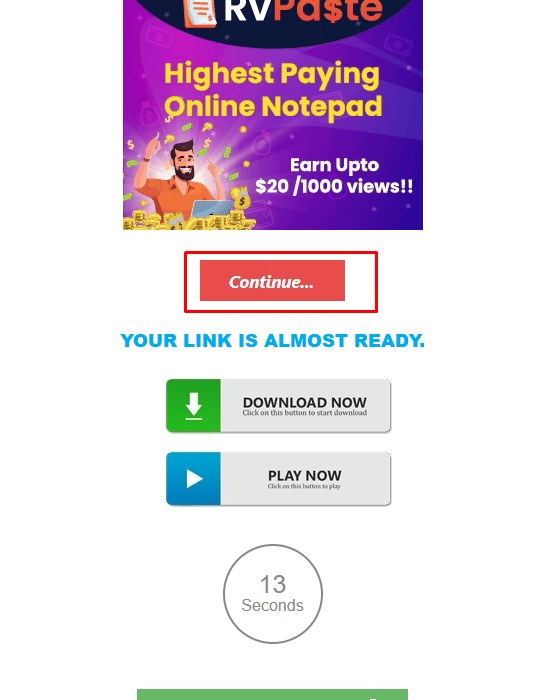
The original tab now shows a different page that looks like a blog. Find the red Continue… button near the top and click it, then wait for the countdown (Please Wait 7 Seconds…) to finish.
Step 3: Scroll Down and Click Get Link
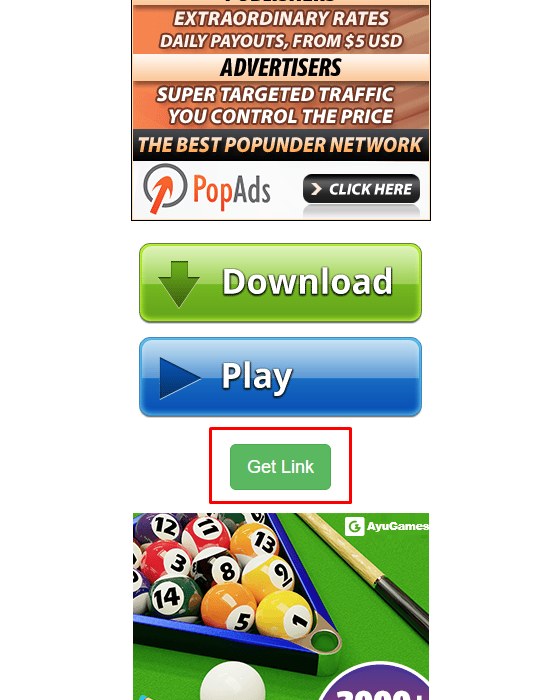
Stay on the same tab and scroll all the way to the bottom of the page. A green Get Link button appears below the article. Click it.
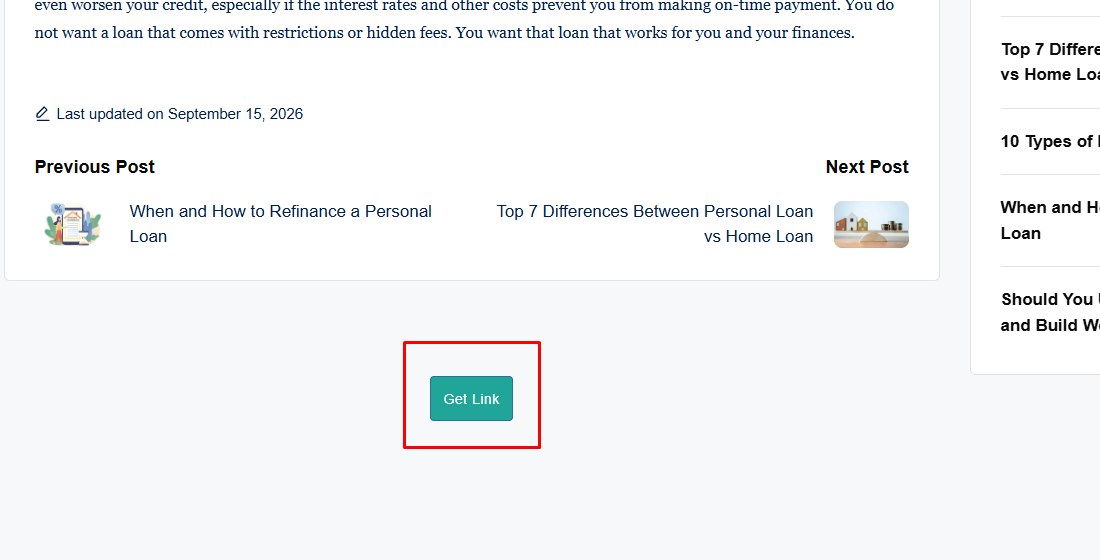
Step 4: Do Steps 2 and 3 Once More
You’ll land on a second blog page. Repeat the same thing: click the red Continue…, wait for the countdown, scroll to the bottom, and click Get Link.
Step 5: Final Page and Download
The last page says Your link is almost ready.
- Click the red Continue… button.
- Wait for the timer to count down to 0 seconds (about 15 seconds).
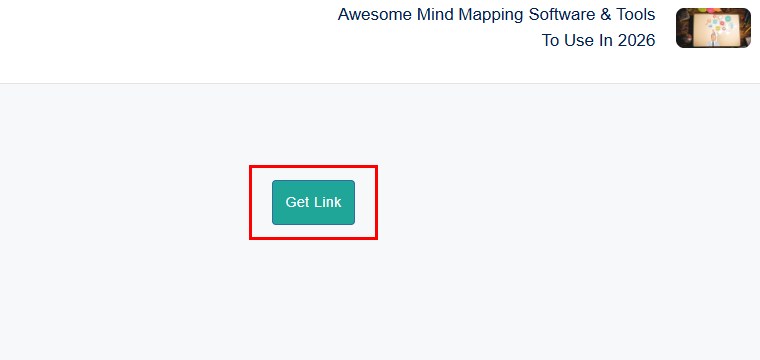
- Scroll down a little. A small green Get Link button appears below the ads. Click it, and the patch downloads.
Tabs keep popping up? That’s normal on these pages. Close every new tab and keep only the original one. Your progress stays on the original tab.
After the Download
You should now have a small .zip file with the patch inside. Unzip it, then follow the instructions on the patch’s own page to apply it to your clean Japanese ROM. Each patch page lists the exact ROM you need and its checksum.
Problems?
I clicked Get Link but nothing happened
The countdown probably hadn’t finished yet. Wait until it reaches 0, scroll down again, and click Get Link once more. If a new tab opened instead, close it and click again on the original tab.
I keep going through the blog pages
Going through the blog page twice (steps 2 to 4) is normal. If you’ve looped more than three times, close everything and start again from the download button on the patch page.
Something asked me to install an app or allow notifications
That’s an ad, not the patch. Close it. If you already allowed notifications, you can turn them off for that site in your browser’s site settings.
The link is broken or the file won’t download
Please email gametranslate.us@gmail.com with the name of the patch, and I’ll fix the link.
Thanks for sticking with it. Once again, sorry for the extra clicks. The ads exist only because donations don’t cover the cost of running the site. If a patch made your day, a coffee helps keep the next translation coming, and maybe one day the ads can go.